

At one point in time Flash videos were everywhere you looked online, and were almost synonymous with the idea of online streaming videos. Although that may not be the case anymore you can still find a lot of Flash video content in the form of online streaming videos or Flash animation.
As you may have guessed, downloading these videos can often be fairly tricky as most of the websites or platforms that they’re housed on don’t provide download links. Because of that you’ll have to take a different tack, and use Movavi Screen Recorder to record the Flash video from your screen and only then save it on your hard drive.
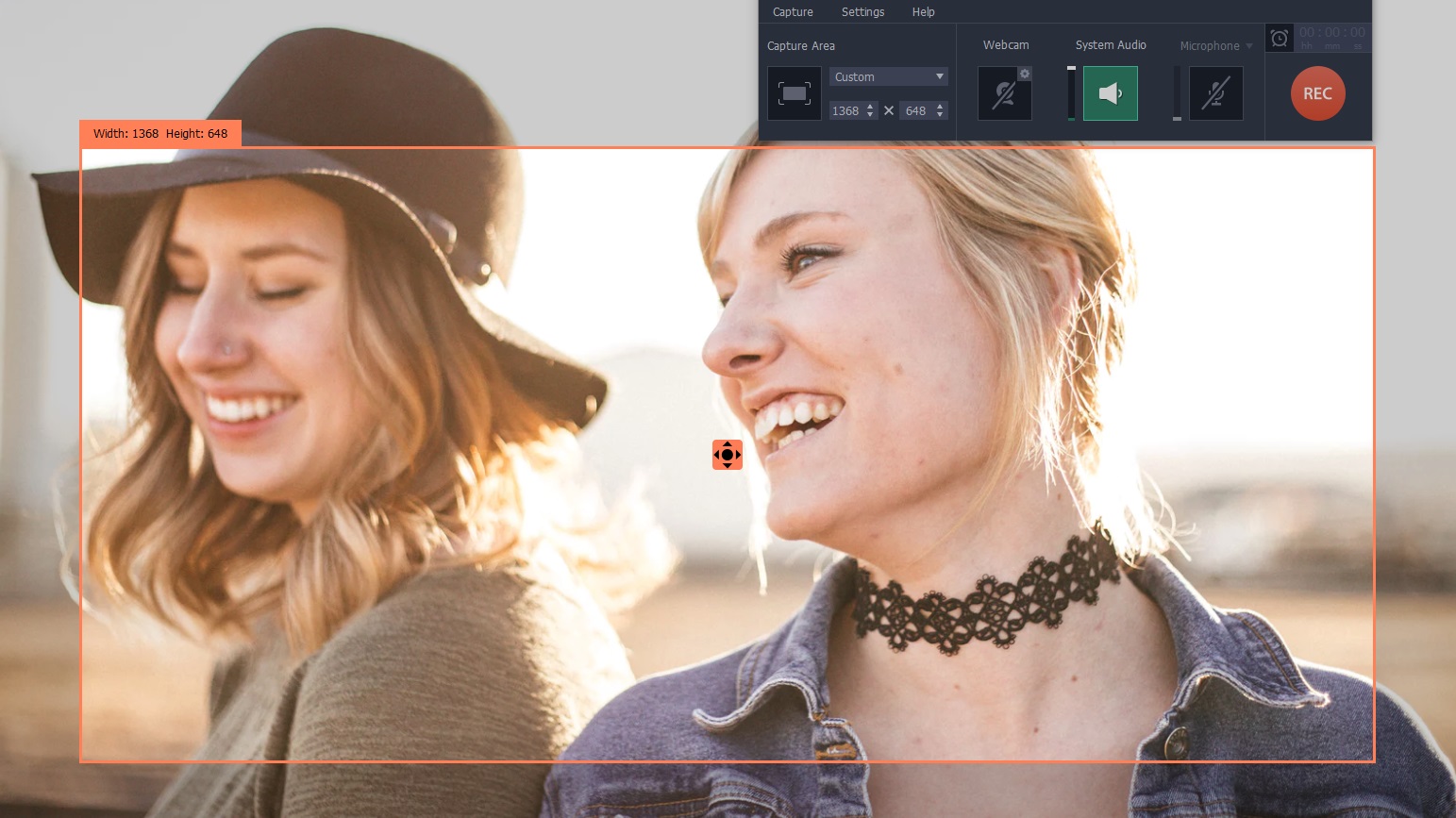
Part of the reason why you should opt to use Movavi Screen Recorder is that it will make all of that quite easy. In fact, if you already have a Flash video that you’d like to download open, you can go ahead and launch Movavi Screen Recorder and draw a frame over it using your mouse cursor as soon as you do.
That frame will define the capture area, which in this case should be the Flash video that you want to record. It is also possible to click on a program window that you want to record to select it, or click anywhere else and use one of the presets listed on Movavi Screen Recorder’s interface.
Aside from the capture area, the only other setting that you should check on is the audio source. By default, the ‘System Audio’ icon should be highlighted in green and the ‘Microphone’ icon should not be, but if that isn’t the case you can click on one or the other to toggle it.
If that checks out, you should be ready to start recording at any time. Before you do however you may want to click on the ‘alarm clock’ icon and set a timer or schedule the recording if you’d like Movavi Screen Recorder to automate it. On the other hand if you’d prefer to manually control it, you can click ‘REC’ and play the video then use the ‘Pause’, ‘Cancel’ or ‘Stop’ buttons.
Essentially that is all that it takes to use Movavi Screen Recorder as a Flash video downloader. Once the recording is complete you can review it, trim out any parts you don’t need, then save it in any format.
Of course there are other parameters that you can adjust in Movavi Screen Recorder as well – they just aren’t particularly relevant when you want to download Flash videos. Assuming you’d like to use it to record other types of videos however, you’ll find a slew of features that are just a click or two away.
